If you are experiencing crashes, connection failures, black screens, or activation errors while attempting to run the Astute Beta Server, you are dealing with the inherent flaws of modified software. Because this client is unofficial, it lacks Garena's certified code structure. The app fails to establish stable connections due to server-side emulation crashes, signature package collisions, missing OBB resource files, or modern Android security blocks. This guide analyzes these issues at a systems level and details the risks involved.
1. The Anatomy of Unofficial Client Failures
Mobile applications are complex systems that rely on constant communication between the client (the code running on your phone) and the server (Garena’s cloud database). For Free Fire to run smoothly, this connection must remain secure and synchronized. Every time you make a move, fire a weapon, or open your inventory, small data packets are sent back and forth to keep game state aligned.
When developers modify an APK to build an unofficial client like the Astute Beta Server, they disrupt this alignment. They alter the game's source files, redirect network configurations to private servers, and strip essential authentication scripts. These changes make the app highly unstable. Without the support of a professional server team, a secure network, and official updates, the modified client breaks under the slightest system changes.
2. DNS Resolution Failures & Hosting Server Bottlenecks
One of the most common errors players encounter is a connection failure screen, often accompanied by "Server Busy" or "Connection Timeout" popups. At a networking level, this issue usually stems from two main causes: DNS routing errors and hardware overload.
When you launch a modified game, the client performs a DNS (Domain Name System) lookup to find the IP address of its custom matchmaking server. Because these unofficial servers are frequently moved to different hosting providers to avoid detection, their IP addresses change constantly. When this happens, local network caches become outdated, leading to DNS resolution failures that prevent the client from establishing a connection.
In mobile and web networking, Domain Name System records utilize a parameter known as Time-To-Live (TTL). TTL dictates how many seconds a local resolver, ISP router, or device operating system is permitted to cache the DNS IP mapping before querying the authoritative name server again for updates. Because unofficial server operators frequently migrate their hosting configurations to bypass detection or mitigate targeted distributed denial-of-service (DDoS) attempts, their DNS records must update rapidly, necessitating a very short TTL (often 60 seconds or less).
However, many global cellular network providers and local internet service providers enforce aggressive DNS caching rules to conserve internal bandwidth, ignoring low TTL values and retaining outdated records for hours. As a result, the modified game client on the user's mobile device is fed a stale, inactive IP address, causing immediate connection failure. When the client attempts to establish a raw TCP socket connection, it hangs indefinitely, eventually resulting in connection timeouts (e.g., standard POSIX network errors like ETIMEDOUT or EHOSTUNREACH).
Even if the IP address resolves correctly, the private emulator server itself is a major bottleneck. Unlike Garena’s massive, multi-million dollar cloud infrastructure, unofficial servers run on cheap Virtual Private Servers (VPS) with limited CPU and RAM allocations.
During major update windows (like the OB53 patch), thousands of players attempt to log in at the same time. This surge in traffic exhausts the server's network queue and memory limits, causing incoming TCP socket requests to time out. The server melts down under the load, making it impossible for the client to connect.
3. Android Package Manager & Signature Package Collisions
If your device displays an "App Not Installed" error during the installation process, you are likely experiencing a package collision or signature conflict enforced by Android’s Package Manager Service (PMS).
Android identifies applications using a unique package name (for Free Fire, this is typically com.dts.freefireth). To prevent malicious apps from overwriting legitimate ones, Android’s Package Manager checks the cryptographic signature of any incoming APK. If the package name matches an app already installed on the phone, but the developer signature is different, the system rejects the installation.
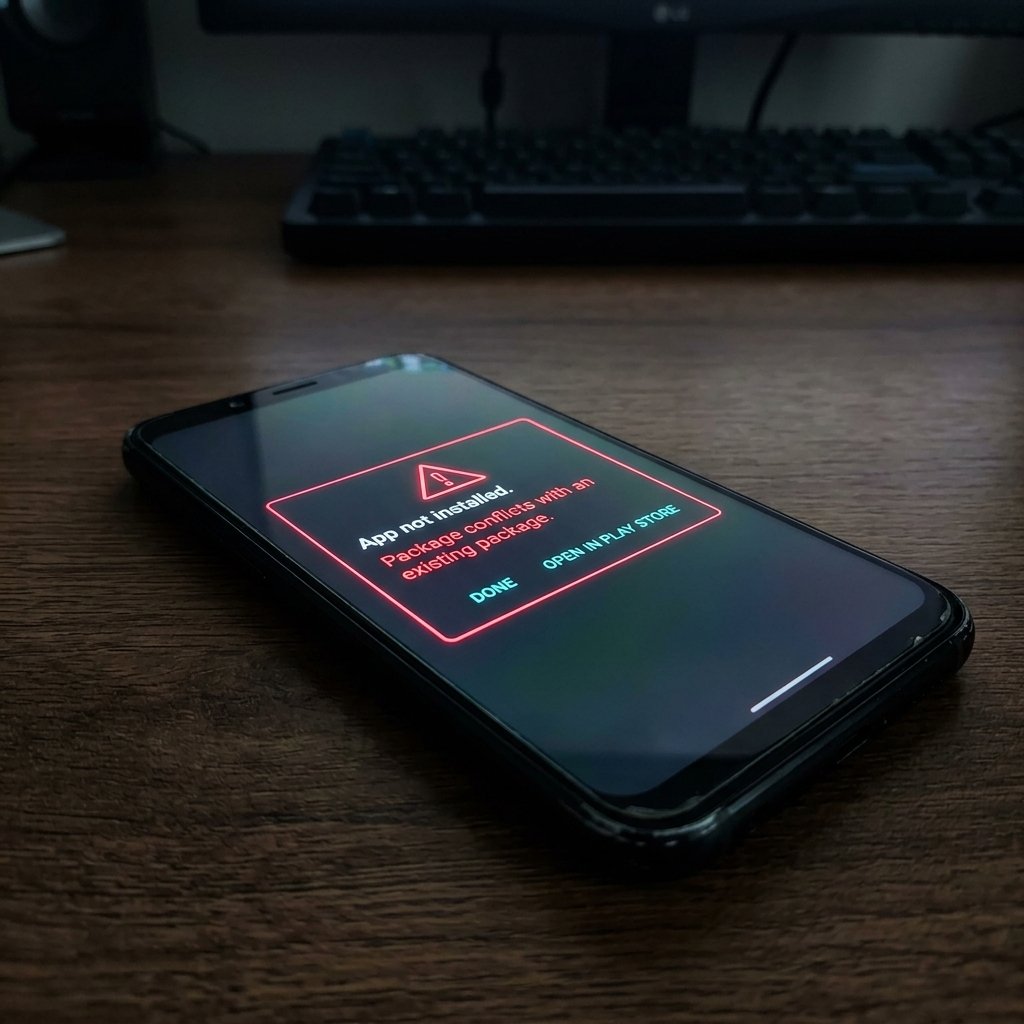
Since the Astute Beta Server APK uses a modified version of Garena's client files, it has a signature conflict. Android blocks the installation to protect the real game files from being overwritten.
To bypass this block, players are often instructed to uninstall the official Free Fire client. While this resolves the signature collision, it exposes your device to modified files that lack verified developer certificates, clearing the path for malicious code to run on your system.
4. Missing OBB Assets & Scoped Storage Blocks
Another common issue is a black screen on launch, or the game getting stuck in an infinite "Downloading resources..." loop. This occurs when the application is missing its primary asset package, known as an OBB (Opaque Binary Blob) file.
An OBB is a compiled archive that contains the game's heavy assets, including 3D models, audio files, textures, and map configurations. While the APK handles the application's executable code, the OBB provides the actual visual content. Many third-party sites distribute only the raw APK file to save bandwidth, leaving the client without its required assets.
To run the game, players must download the OBB file separately and place it in the correct system directory: /Android/obb/com.dts.freefireth/.
However, modern Android updates (Android 11 and newer) restrict access to these directories using a policy called Scoped Storage. This policy blocks third-party file managers from writing to the system /Android/obb/ folder. As a result, the client cannot find its assets, leading to a black screen or crash on startup.
5. OS Security Policies & API Deprecation
Google Play Protect is Google's built-in security service that runs constantly on Android devices. It scans apps during installation and flags any that behave suspiciously or attempt to access restricted system resources.
Because unofficial beta servers are modified by anonymous developers, they lack valid certificates and often contain suspicious code, causing Play Protect to block them. To get around this, distribution sites instruct users to turn off Play Protect. Disabling this security layer allows the app to bypass Android's sandbox model, letting it access sensitive APIs, monitor background processes, or steal personal data.
Additionally, compatibility issues are common. Android regularly updates its API levels, deprecating older system functions to improve security and performance. Unofficial APKs are rarely updated to match these new standards.
If an APK was built targeting an older version of Android (such as Target SDK 29 for Android 10), it may crash immediately when run on a device running Android 13 or 14 (Target SDK 33/34). This happens because the newer operating system blocks deprecated system calls and enforces stricter background execution policies.
6. Regional Firewall Blocks, Geofencing, and ISP Traffic Filtering
Even if DNS resolution succeeds and the server is online, regional firewall restrictions and geofencing policies can block connection attempts. Game developers and regional telecommunications authorities enforce strict network traffic controls, particularly for applications utilizing unauthorized server emulators.
Official game servers rely on Border Gateway Protocol (BGP) routing and regional Content Delivery Networks (CDNs) to distribute traffic efficiently across geographical zones. In contrast, unofficial servers like the Astute Beta Server are typically hosted in singular locations using budget cloud providers. To protect their network integrity and enforce intellectual property boundaries, ISPs (Internet Service Providers) and cellular carriers in specific regions implement Deep Packet Inspection (DPI). DPI analyzes the headers and payload of data packets traversing their network. When it detects signature patterns resembling unofficial game emulator traffic, it blocks the connections or drops the packets.
To bypass regional firewalls, players often resort to Virtual Private Networks (VPNs). However, routing modified game client traffic through a VPN introduces severe performance bottlenecks:
- MTU Packet Fragmentation: VPN protocols wrap original game packets in additional encryption layers. This encapsulation increases the packet size beyond the default Maximum Transmission Unit (MTU) of cellular networks (typically 1500 bytes), causing packets to fragment. Fragmented packets lead to high packet loss and connection drops in real-time games.
- IP Address Flagging: Most public VPN servers use shared IP addresses that are already blacklisted by cloud providers and firewalls due to spam or bot activity, leading to immediate IP bans at the gateway level.
- Routing Latency: Real-time multiplayer titles require round-trip times (RTT) under 100ms. VPN routing adds multiple network hops, raising latency to unplayable levels and causing the client's heartbeat loop to time out.
7. Cache Validation Anomalies & Corrupted Local Storage
Many startup hangs, infinite loading spinners, and visual errors on the Astute Beta Server are caused by cache validation anomalies within Android's storage layer. Unofficial app modifications often disrupt how the client caches HTTP responses and validates local assets.
When a mobile application requests dynamic assets, it uses standard cache validation headers like ETag or Last-Modified. These headers tell the client whether local files match the latest versions on the server. If the server says they match (returning a 304 Not Modified status), the client loads the cached file from local storage, saving bandwidth and speed.
However, the private servers used by the Astute Beta Server rarely support standard cache validation headers. Since their server software is often a reverse-engineered emulator, it lacks the complex caching logic found in official systems. When the client requests an asset update, the server may send incomplete headers, or return a 200 OK status with corrupt payloads.
The client then writes this corrupt data directly to its local sandbox cache. Because the app cannot validate the files properly, it repeatedly loads the corrupted cache, causing:
- Infinite load loops as the UI engine attempts to parse malformed JSON or binary configuration tables.
- Asset mismatch crashes, where the client tries to load a 3D model skeleton that does not match the animation files stored in cache.
- Incorrect pricing, missing item thumbnails, and menu buttons that do not react when clicked.
8. Comprehensive Android Network Troubleshooting Guide
When dealing with network connection issues, players often blame the game's servers when the issue actually lies in misconfigured network settings on their Android device. If you are experiencing connection drops, DNS lookup errors, or packet loss in mobile apps, you can resolve these issues using standard Android network settings adjustments.
Configure Android's Private DNS Settings
Modern Android versions (Android 9.0 and higher) include a feature called "Private DNS" that routes all DNS queries through DNS-over-TLS (DoT). While this improves security, it can conflict with local ISP routing or custom private servers.
- Open your device's Settings and tap on Network & Internet (or Connections).
- Select More connection settings and tap on Private DNS.
- By default, this is set to Automatic. If your DNS queries are failing to resolve, switch this setting to Off to use your network's default DNS server, or select Private DNS provider hostname and enter a reliable public service like
dns.google(Google) orone.one.one.one(Cloudflare). - Tap Save and restart your device to apply the changes.
Clear Network Settings and Flush DNS Resolver Cache
Stale DNS caches and corrupted network configurations can block connection paths. You can flush these cached records and restore default network behaviors by resetting your device's network settings.
- Go to Settings and scroll down to System (or General Management).
- Tap on Reset options (or Reset).
- Select Reset Wi-Fi, mobile & Bluetooth (or Reset network settings).
- Confirm the reset by entering your PIN or pattern. This action will delete saved Wi-Fi networks and Bluetooth pairings, clearing out any corrupted configuration files in the system network stack.
Modify Access Point Names (APN) Protocols
Cellular providers use Access Point Names (APNs) to route mobile data traffic. Misconfigured APN protocols can block older apps that only support IPv4 network connections.
- Navigate to Settings > Network & Internet > Mobile Network.
- Tap on Access Point Names.
- Select your active APN configuration to view its settings.
- Scroll down to find APN Protocol and APN Roaming Protocol. If they are set to IPv6 only, change them to IPv4/IPv6 to ensure compatibility with older networking libraries.
- Tap the three dots in the top-right corner and select Save.
Disable Battery Optimization for Network Stability
Android's Doze Mode and power-saving features close background processes to preserve battery life. These optimizations can cut network sockets during active gaming sessions.
- Open Settings and tap on Apps.
- Select the application you are troubleshooting and go to its Battery settings.
- Change the battery usage setting from Optimized to Unrestricted. This prevents the OS from putting the app's network tasks to sleep when you switch apps or receive background notifications.
9. Actionable Diagnostic & System Recovery Protocol
If you have installed the Astute Beta Server and are experiencing issues, we strongly advise uninstalling it to protect your device. If you want to check your system for leftover files, follow this diagnostic checklist:
1. Remove the Application Package
Open Android Settings, navigate to "Apps" or "App Management," locate the Astute Beta Server application, and select "Uninstall." This stops the app's services from running in the background.
2. Clean Leftover Directories
Use a secure file manager to check your storage directories. Delete any leftover folders associated with the mod, especially in /Android/data/ and /Android/obb/, to prevent file conflicts during future installations.
3. Re-enable System Protections
If you disabled Google Play Protect, re-enable it immediately. Open the Google Play Store, tap your profile icon, select "Play Protect," go to settings, and toggle both security scan options back on.
4. Execute a Security Scan
Download a reputable antivirus scanner (such as Malwarebytes) from the Google Play Store. Run a full system scan to identify and remove any secondary adware, spyware, or keyloggers that may have been installed alongside the APK.
5. Rotate Account Credentials
If you logged into any account (such as Facebook or Google) through the modified app, change your passwords immediately from a separate, secure device. Enable Two-Factor Authentication (2FA) to lock down your profiles.
Following this protocol helps clean your device of unverified files, protecting your personal data and official game accounts from security threats.
10. System Troubleshooting Verdict
When dealing with the Astute Beta Server, troubleshooting connection and installation errors is a circular process. The app's issues are not temporary bugs that you can fix with a simple setting tweak; they are structural design flaws built into the modified software itself.
Save yourself time and avoid frustration by deleting the modified client. Stick to the official Free Fire Advance Server, where you can test new features safely, enjoy reliable hosting, and protect your device and gaming accounts.